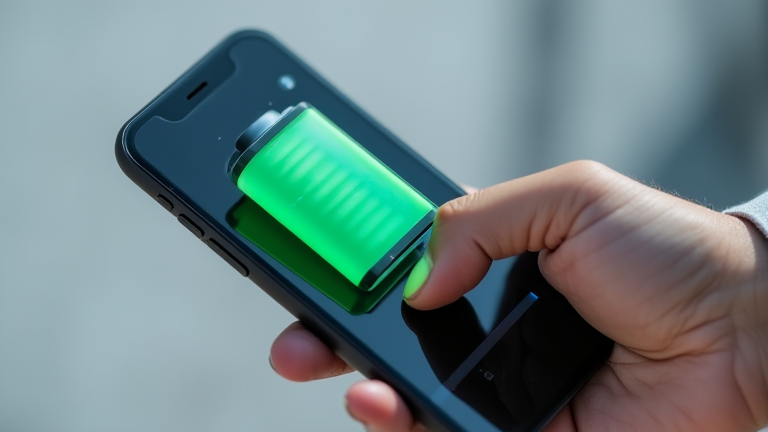
TL;DR: To fix iPhone 15 battery drain issues, immediately update to the latest iOS version and review your Background App Refresh settings to limit unnecessary data usage. Additionally, enabling Low Power Mode and checking for rogue apps in your Battery Health menu can significantly restore optimal performance.
The iPhone 15 series represents a significant leap forward in Apple’s mobile technology, yet early adopters have reported inconsistent battery life. While the device is equipped with the powerful A16 Bionic chip and enhanced thermal management systems, software glitches and aggressive background processes can lead to rapid depletion. Understanding the interplay between hardware capabilities and software optimization is crucial for maintaining a seamless user experience.
Understanding the Hardware and Software Dynamics
The iPhone 15 boasts a sophisticated battery architecture designed to handle the demands of high-performance tasks. However, the introduction of new features such as improved camera sensors and faster 5G modems places a higher load on the power system. Industry analysts suggest that the initial software updates following the device’s launch often contain bugs that prevent the operating system from efficiently managing power distribution. This misalignment between the hardware’s potential and the software’s execution is a primary culprit behind unexpected drain issues.
Furthermore, the industry impact of these battery concerns extends beyond individual user frustration. As consumers become more aware of battery longevity, tech reviewers and industry experts are placing increased emphasis on software stability as a key metric for device evaluation. This shift pressures manufacturers to prioritize rigorous testing of power management algorithms before release. The resulting scrutiny has led to a broader conversation about sustainable technology and the importance of long-term software support in maintaining device efficiency.
Practical Steps for Optimization
Addressing battery drain requires a systematic approach to identifying the source of the problem. The first step is to ensure that your device is running the most recent version of iOS, as Apple frequently releases patches specifically targeting battery optimization. Users should navigate to the Settings menu and inspect the Battery section to identify any applications consuming excessive power in the background. Disabling Background App Refresh for non-essential applications can yield immediate improvements in battery longevity.
Another critical adjustment involves managing display settings. The iPhone 15’s Super Retina XDR display is highly efficient, but high brightness levels and always-on display features can significantly impact battery life. Reducing screen brightness and enabling auto-brightness can help conserve energy without compromising usability. Additionally, users should consider enabling Low Power Mode during periods of heavy usage or when charging options are limited. This mode temporarily disables background activities and visual effects, extending the device’s operational time.
Long-Term Maintenance and Industry Trends
Maintaining battery health is not just about immediate fixes but also involves long-term habits. Regularly calibrating the battery by allowing it to drain completely and then charging it to full capacity can help the operating system provide more accurate battery percentage readings. Moreover, staying informed about industry trends regarding battery technology can help users make informed decisions about future purchases. The integration of AI-driven power management systems in upcoming iOS updates promises to further enhance efficiency, setting a new standard for mobile device performance.
FAQ
Q: Why is my iPhone 15 battery draining so quickly after the latest update?
A: This is often due to indexing processes that occur after an update; wait a day or two as the battery optimization will improve naturally.
If you want to dig deeper, check out our guide on How to Create a Sitemap in WordPress: A Beginner Tutorial.
Q: How can I check which apps are causing the most battery drain?
A: Go to Settings, tap on Battery, and scroll down to view a detailed breakdown of battery usage by application over the last 24 hours or 10 days.
Q: Does enabling Low Power Mode significantly affect performance?
A: Low Power Mode reduces performance slightly by limiting background activity and visual effects, but it is designed to extend battery life without hindering essential tasks.
Leave a Reply