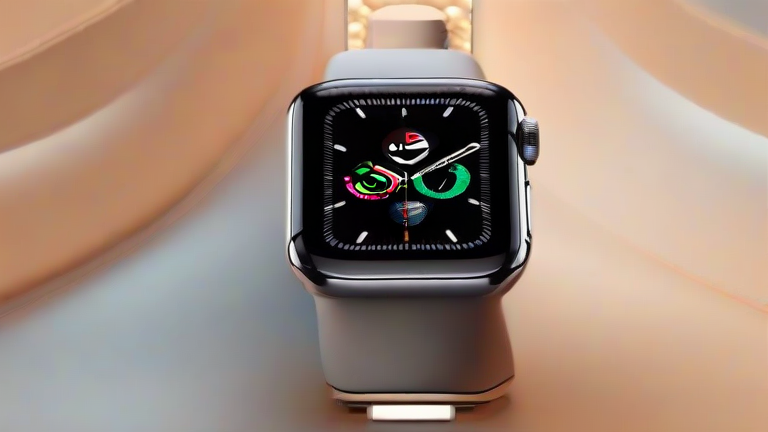
How to Set Up an Apple Watch SE: Complete Step-by-Step Guide
TL;DR: To set up your Apple Watch SE, pair it directly with your iPhone using the Watch app while ensuring both devices are charged and close together. Once paired, follow the on-screen prompts to customize settings, enable Apple Pay, and sync your data for a seamless smart experience.
Latest Developments and Hardware Overview
The Apple Watch SE continues to serve as the gateway for millions entering the wearable ecosystem, offering a compelling balance of price and performance. Recent firmware updates have enhanced background app refresh rates, significantly improving the responsiveness of third-party health and fitness applications. Although it lacks the advanced blood oxygen and ECG sensors found in the Ultra or Series 9 models, the SE remains a powerhouse for core functionalities. It features the S8 SiP chip, which enables faster processing and improved energy efficiency. The display utilizes a bright OLED panel that is easily readable in direct sunlight, a critical feature for outdoor activities. Furthermore, the latest iOS and watchOS integration ensures that the SE stays relevant with features like Crash Detection and improved fall detection, making it a safer companion for users of all ages. The industry impact of this device is profound, as it keeps the barrier to entry low, allowing Apple to maintain a dominant market share against competitors like Samsung and Garmin. By offering essential health metrics such as heart rate monitoring, sleep tracking, and activity rings, the SE appeals to casual users who may not need the premium features of its siblings but still desire the tight integration with the Apple ecosystem.
If you want to dig deeper, check out our guide on Why 1 in 5 Drivers Turn Off Life-Saving Safety Tech.
Step-by-Step Setup Guide
Begin by ensuring your iPhone is running the latest version of iOS. This is crucial because Apple Watch features are tightly coupled with the operating system version. Next, charge both your iPhone and the new Apple Watch SE to at least fifty percent to prevent interruptions during the setup process. Unbox the watch and place it on its magnetic charging puck. Bring your iPhone close to the watch, and the “Pair Apple Watch” screen should appear automatically. If it does not, open the Watch app on your iPhone and select “Set Up Apple Watch.” You will then see a colorful animated ring on your watch face; point your iPhone’s camera at it to verify the pairing code. After a few moments, the watch will chime and display a success message. You can now choose to set up as a new watch or restore from a backup if you are upgrading. During this phase, you will be prompted to set up Apple Pay, which requires adding a credit or debit card to your Apple Wallet. This allows you to make contactless payments directly from your wrist. Following payment setup, you will configure basic settings such as wrist orientation, haptic intensity, and screen brightness. The system will then sync your data, including contacts, calendars, and media. This process may take several minutes depending on the amount of data being transferred. Once complete, you will be guided through a short tutorial on how to swipe, tap, and rotate the digital crown. Finally, customize your watch face by choosing a style that suits your personality and adding complications for quick access to weather, battery life, or activity stats. Ensure that you enable Find My Watch to locate your device if it is ever lost. By following these steps, you will have a fully functional Apple Watch SE ready to track your health and manage your notifications efficiently.
FAQ
Q: Does the Apple Watch SE support cellular connectivity?
A: Yes, specific models of the Apple Watch SE include built-in LTE, allowing you to make calls, stream music, and send messages without your iPhone nearby, provided you have a cellular plan.
Q: Can I use the Apple Watch SE without an iPhone?
A: No, the Apple Watch SE requires a paired iPhone to function. It cannot be set up or used independently as a standalone device, unlike some other smartwatches on the market.
Q: How long does the initial setup process take?
A: The initial setup typically takes between ten and twenty minutes, depending on whether you choose to restore a backup or set up as a new device and how fast your
Leave a Reply